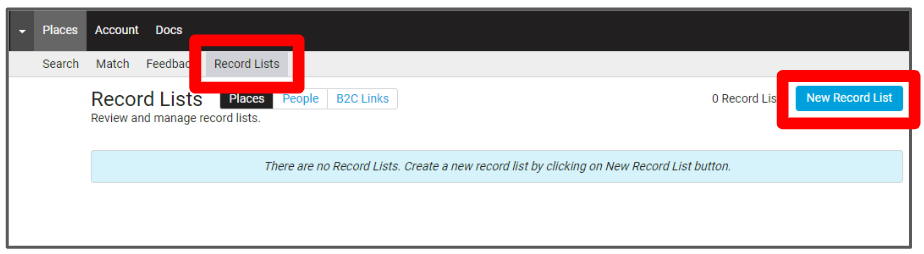
1. Create New Record List
Go to People > Record List > New Record List
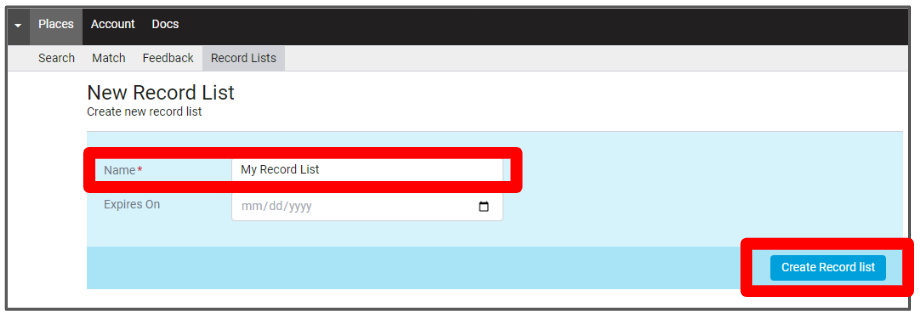
- Enter a Record List Name and an optional Expires On Date
- Click “Create Record List”
2. Upload IDs File
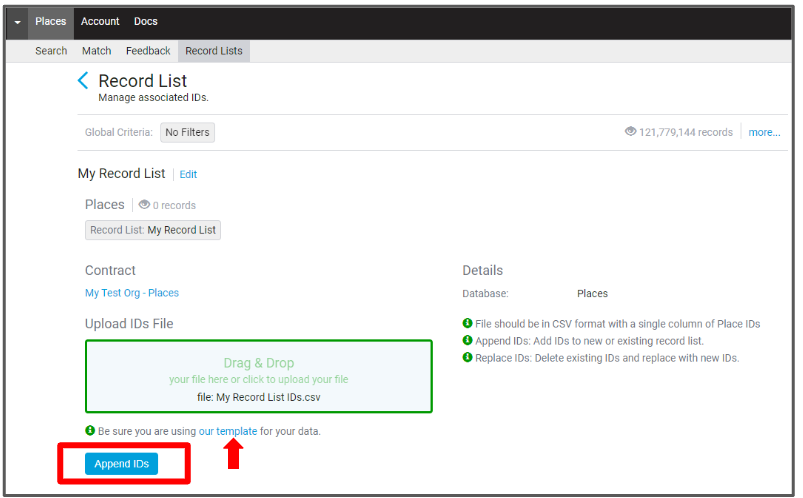
- Download the Record list template
- Add Infogroup or Person IDs to the template; Save File
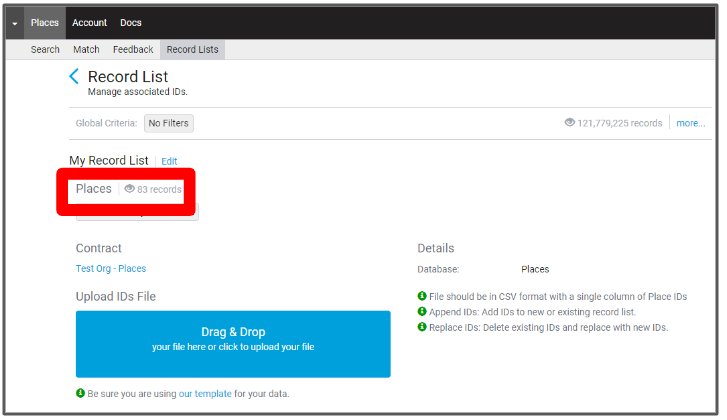
- In the blue box, drag & drop file or select file from your desktop
- Click “Append IDs”
3. View Record Lists
- On the Record List page, click on the eyeball to view records in Search UI
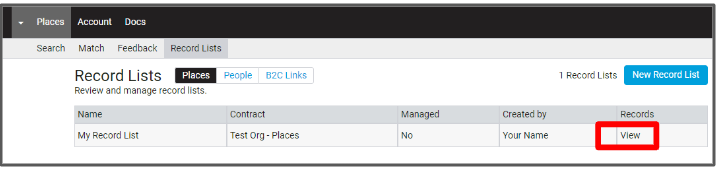
- On the Record List home page, click on “View” in the Records column
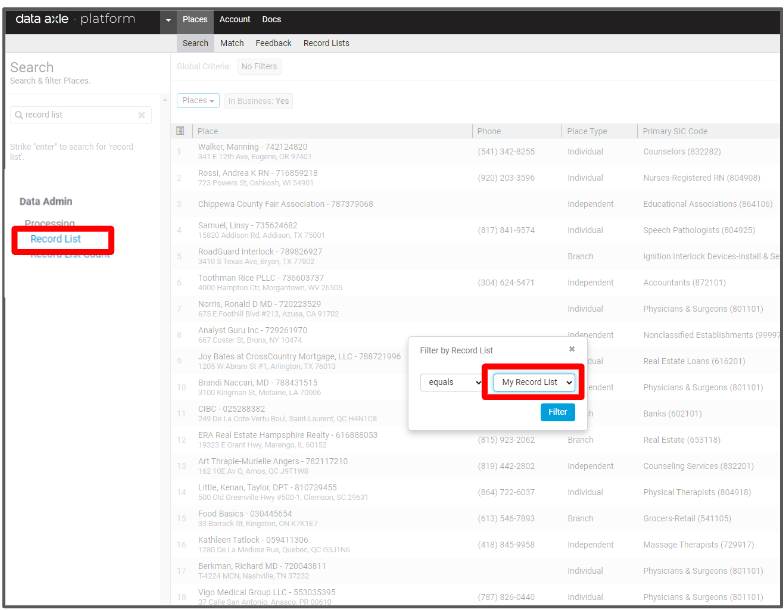
- On the Search UI page, filter the database by Record List
4. Add or Replace IDs to a Record List
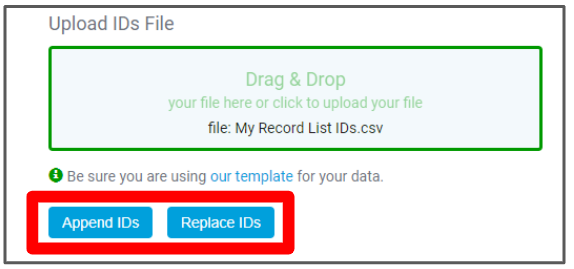
- To add more IDs to an existing Record List or replace the list of IDs with a new list, click on the Record List you want to update.
- Drag & drop file or select file from your desktop
- Click “Append IDs” or click “Replace IDs”
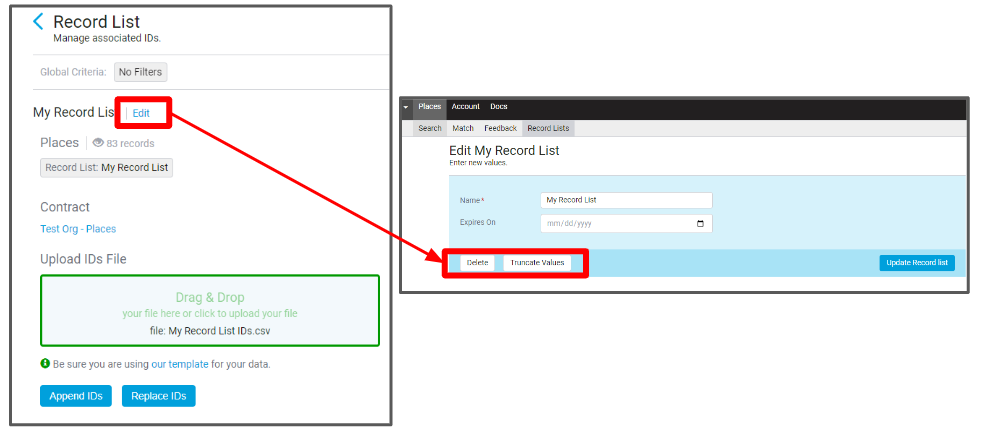
5. Delete Record List
- To remove all IDs from a list or delete a Record List completely, click on the Record List you want to delete
- Click “Edit”
- Click “Truncate Values” or click “Delete”